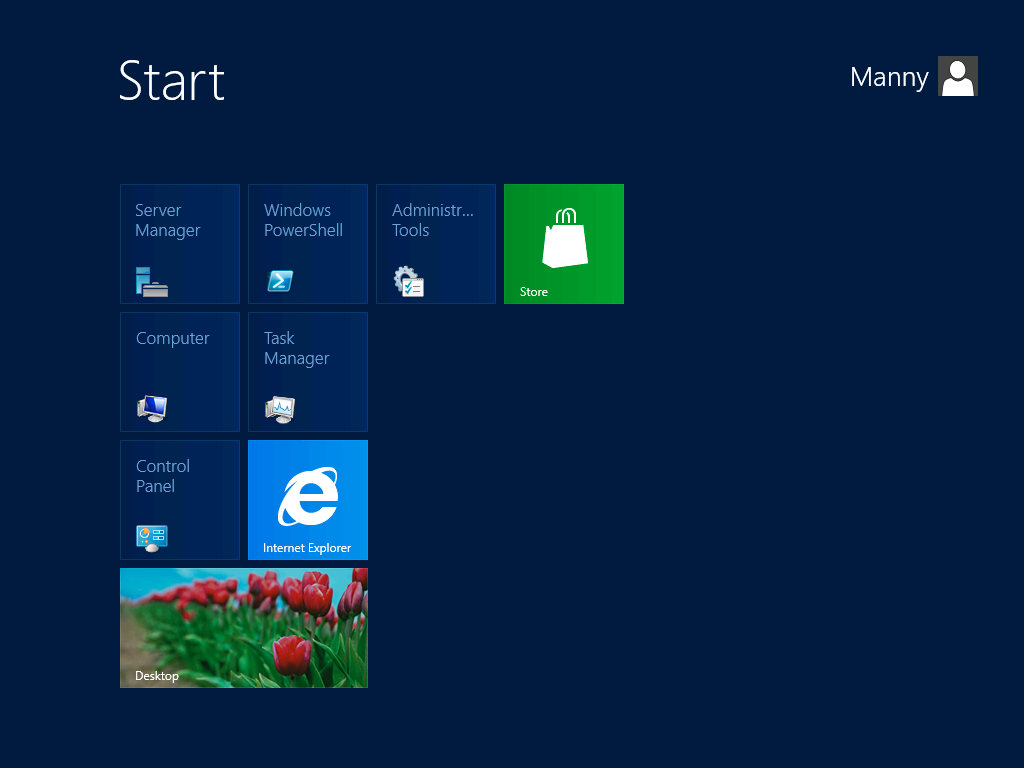
 In this blog post I’m trying to explain how-to create a mandatory profile for Server 2012 and Windows 8. This is only for a clean windows installation. The Microsoft best practices are saying that you need to update the Mandatory profile after each software installation/update on the system.
The Test User
First we create a user named: Manny. This user is used to create the profile. You can name it any way you want. Don’t give it any profile. You can create a local user, but my test machine is also a domain controller, so I only can create an AD user.
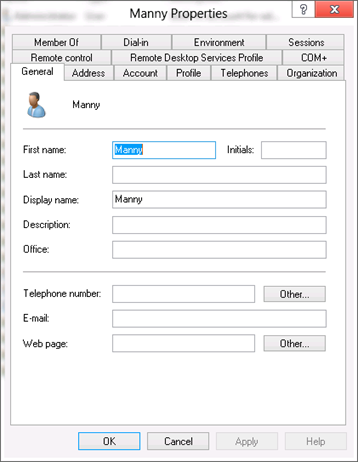
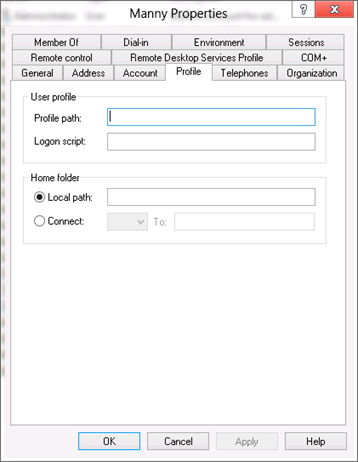
Login with Manny and customize the environment. (Don’t forget to remove the PowerShell and Server Manager pinned icons in the taskbar).
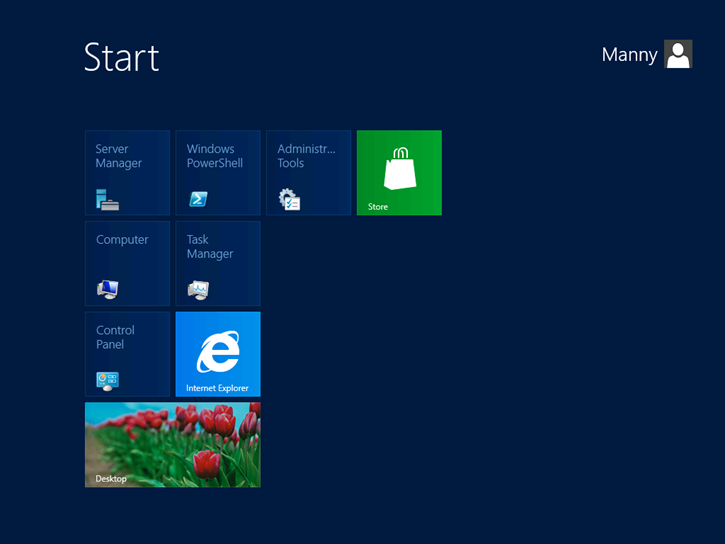
Now logoff Manny. (Click in the upper right corner on the user name  )
)
Create The Mandatory Profile Folder
Log back in with an Administrator. Copy the Manny profile to you profile share on the network. Rename the folder into: Mandatory.v2 (or any other name you like). The .v2 must be added because Windows Server 2012 and Windows 8 make use of the .v2 type profiles. (Like Windows 7 and 2008 R2)
Load The Profile Into The Registry To Edit It
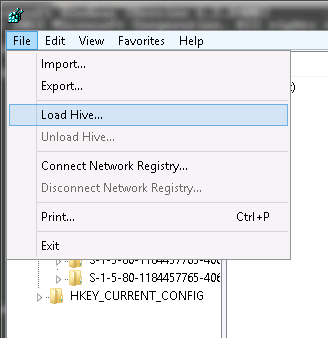
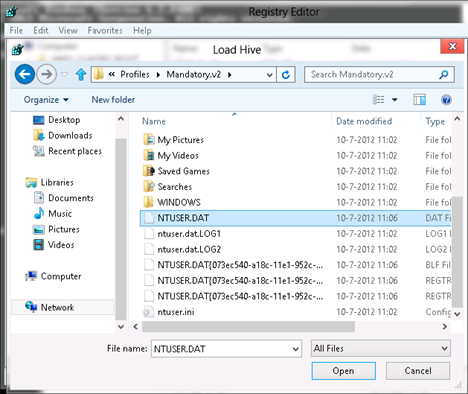
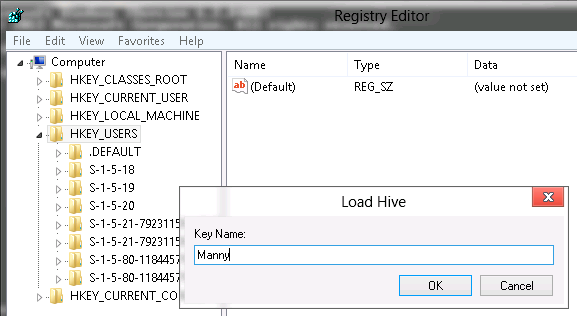
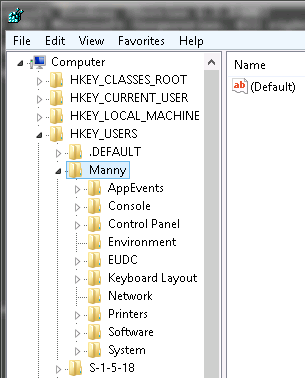
Start regedit and open the: ntuser.dat from the profile.
Set The Registry Permissions
Open the permissions of the Manny profile. Remove Manny and the Administrators group. Add authenticated users, full control. The permissions would look like this:
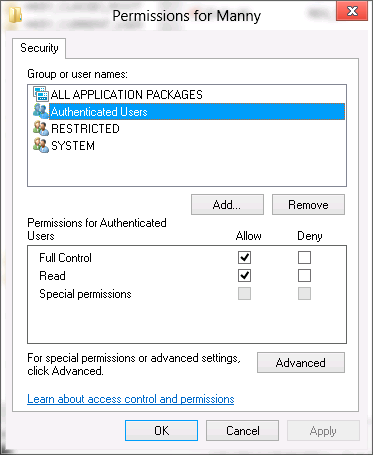
I always check, under advanced, “replace all child object permissions entries with inheritable permissions”. Now, for VDI environments this works good. But in RDS environments the same users on the system could access the registry of other users. This can be locked down with subinacl.exe. This will be another blog post soon
Registry Changes
Search the registry for Manny en clean those value’s or change the type from REG_SZ to REG_EXPAND_SZ and add the value %USERNAME%
Delete all policies: Manny\Software\Microsoft\Windows\CurrentVersion\Policies and Manny\Software\Policies
Check: Manny\Software\Microsoft\Windows\CurrentVerion\Run and RunOnce if they are empty. Things that have to start at logon must be started via other methods like logon script/RES WorkSpace Manager/AppSense
The value’s in Manny\Software\Microsoft\Windows\CurrentVersion\Explorer\Shell Folders should not be touched. Because on top of that key there is a line saying: DO NOT USE THIS REGISTRY KEY. But you can change this value’s to %USERPROFILE%\etc. I had some issue’s with applications which use this key and can’t handle the variable. Then you can try to change to REG_EXPAND_SZ or contact the vendor. Because applications should not use this key anymore. Read this blog: http://blogs.msdn.com/b/oldnewthing/archive/2003/11/03/55532.aspx
Unload The Profile
Unload the profile and close the registry editor.
Open explorer and navigate to the profile. Delete the log and TM files.
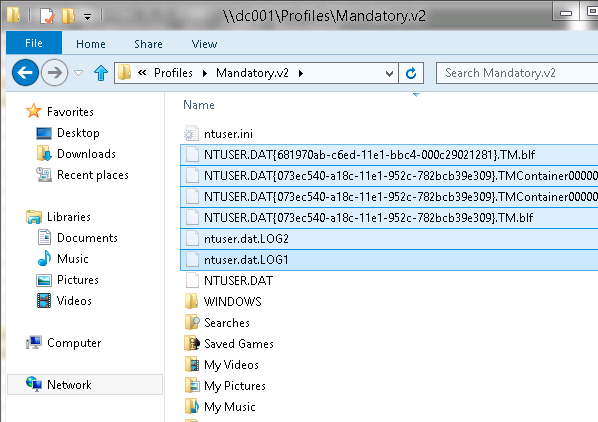
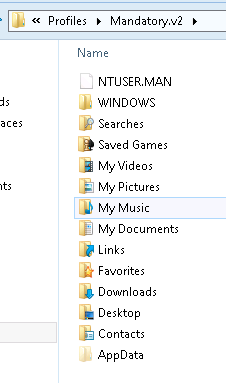
Rename the NTUSER.DAT file to NTUSER,MAN. The profile should look like this:
Delete Profile Files
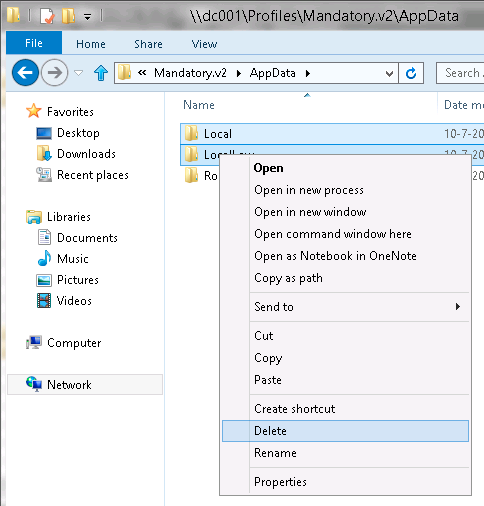
Delete the Local and LocalLow directory from the AppData directory.
Windows Explorer Libraries
To get the Libraries working we have to edit some XML files. Open the following file in notepad: Mandatory.V2\AppData\Roaming\Microsoft\Windows\Libraries\Documents.library-ms
Remove the lines with ownerSID and serialized. The XML should look like this:
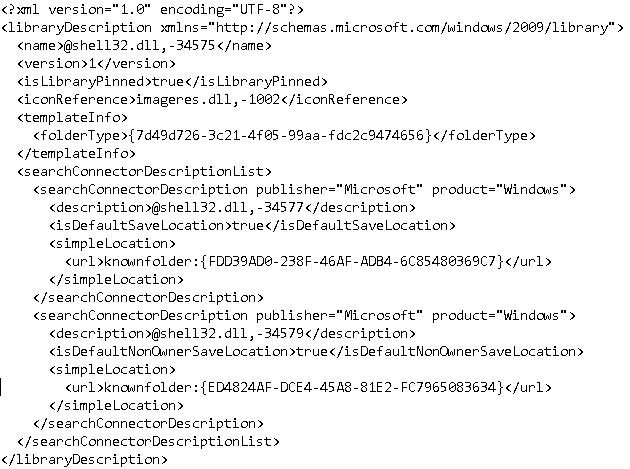
The last searchConnectorDescription is the public folder on a system. If you don’t want users to use this library simply remove that element. then the XML would look like this:
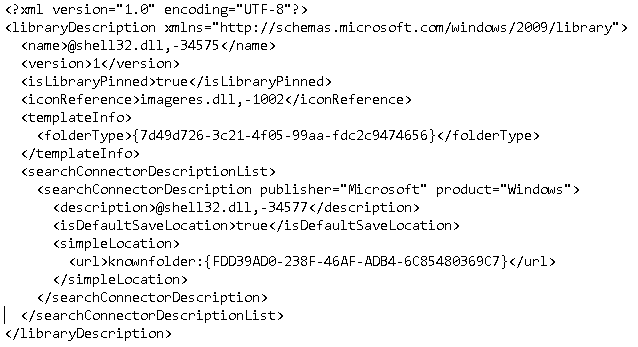
This link to the microsoft site will explain all folders: http://msdn.microsoft.com/en-us/library/windows/desktop/dd940483(v=vs.85).aspx
Do the same for Music.Library-ms, Pictures.Library-ms and Videos.Library-ms
Windows Explorer Favorites (Links)
Navigate to the Links folder in the root of the Mandatory profile. The Links folder contains Shortcuts which are presented at the top of the Windows Explorer window under Favorites. Don’t mix them with Internet Explorer Favorites. Open the properties of the Desktop shortcut. Change the target to %USERPROFILE%\Desktop
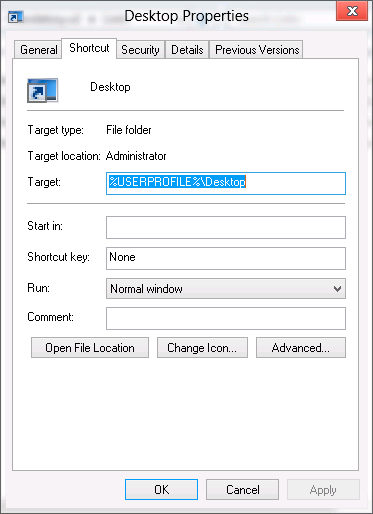
Do the same for the Download. (Recent Places, can’t be edited).
Assign The Mandatory Profile To A Test User
Now open the properties of a test account and add the mandatory profile. Don’t add the .v2, Windows will add that automatically.
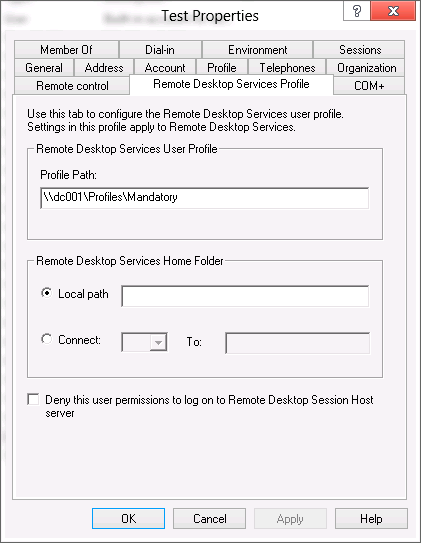
Of course in a real production environment you would set the mandatory profile with a GPO.
Taskbar Pinned Icons
The pinned icons in the taskbar are stored in the following locations:
File: %AppData%\Roaming\Microsoft\Internet Explorer\Quick Launch\User Pinned\Taskbar
Registry: HKCU\Sotware\Microsoft\Windows\CurrentVerion\Explorer\Taskband
That registry key is not easy editable. Use your profile management software to roam these settings. And remove the Server Management and PowerShell icons while creating the default profile
Tips
These tricks also work on Windows 7 and Windows Server 2008 R2
The Active Setup is still in this profile. There will be a post update soon
Discover more from Jeroen Tielen
Subscribe to get the latest posts sent to your email.

Hi, I followed this guide and my profile worked fine using the Windows 8 Enterprise Preview but since installing the final build as soon as I login I get signed back out.
Any chance of an update one the post?
Thanks
It is on my to do list 😉 Thanks for mention.
Hello Callum, did you solve the problem with the login with the final build?
best regards
Thanks for the guide!
Anyway, i have the same problem as Callum and Jeroen.
Windows 8.1 Enterprise + Windows Server 2012R2.
I used this guide and got similar issues. Event log showed the warning message on user’s log off 4006: The Windows logon process has failed to spawn a user application. Application name: . Command line parameters: C:Windowssystem32userinit.exe.
Fixed it by loading hive of NTUSER.MAN again and changing permissions for that hive in Advanced to replace it for all child entries.
Authenticated Users permissions were not set on many subentries, that caused this problem.
Looking forward into the Active Setup post.
We’ve set IsInstalled to 0 for all keys, on both HKLM…InstalledComponents and HKCU…InstalledComponents. Except the Desktop Update keys. Looks like these are needed for the ‘Taskbar Pinned Icons’.
Hi. I’ve tried this and although in general it appears to work I did not find any xml files in the appdata areas where you show in these instructions.
I also found that when I log on as the user when I’ve finally got it all set up, I can only see the desktop, internet explorer and the store tiles. All the ones I setup for the profile have gone.
I’m sure it’s something I’ve missed. Any ideas? Thanks
Rol
Guys, I’m currently very busy so don’t have much time doing research/playing around. Hope you understand this.
Hi Jeroen, I’ve distilled this from MS:
to solve incompatibility issues with man or roaming profiles betw. win7 and win8/8.1
you’ll need this KB “Windows8.1-KB2887595-v2-x64.msu” for a 64bit OS, install it then
on the client add this reg.
—-
Windows Registry Editor Version 5.00
[HKEY_LOCAL_MACHINESYSTEMCurrentControlSetServicesProfSvcParameters]
“UseProfilePathExtensionVersion”=dword:00000001
—-
reboot machine and use this machine and relevant user to build your man profile [you will see ‘Profile.V4’]
Ah thanks for the tip. That’s a good one.
Hey buddy,
If you delete the AppdataLocal directory, keep in mind you might get into trouble if you want to create specific File Associations for your Mandatory User.
These are normally stored in the registry, but also in the file UsrClass.dat which resides in the LocalMicrosoftWindows folder.
Grtz, from !vent 😉
Thanks for your great and helpfull blog.
I got one issue, when i make a mandatory profile this way and we install Internet Explorer 11 after wards it wont start. It will only run As administrator
have you ever seen it? Is there something i did wrong? I cant find out why its not working.
Hi Bart,
Don’t forget to include the IE11 registry keys and (maybe) the profile files in the mandatory profile.
Fine way of explaining, aand pleasant article to
take information on the topic of my presentation topic, which i am going to convey in university.
You ought to be a par of a contest for one of thhe greatest blogs oon the web.
I’m going to highly recommend this blog!
The .v2 must be added because Windows Server 2012 and Windows 8 make use of the .v2 type profiles. (Like Windows 7 and 2008 R2)
these are the profile extensions right?
Windows 10: v5
Windows 8.1,Windows Server 2012 R2: v4
Windows 8,Windows Server 2012: v3
Windows 7,Windows Server 2008 R2: v2
Windows Vista,Windows Server 2008: v1