To install Nutanix Community Edition on a machine which only has 2 drives we always suggested to install AHV on a USB drive. In this blogpost I will describe how to install CE on a machine with 2 disks in total. So 1 disk will be the AHV disk and the other the CVM. So no separate DATA disk.
There is a small catch for this. You need a temporary USB drive as the installer requires three (3) disks in the system (AHV, AOS and DATA).
So in my case I have the following specs in the Intel NUC:
- 1x NVME 1TB drive. (This will be my CVM)
- 1x SSD 1TB (This will be my AHV boot disk, yes a little overkill but it is just for this blog ;))
- 1x USB 240GB (This will be my temporary USB drive)
Lets boot the CE installed and wait for the wizard to appear:
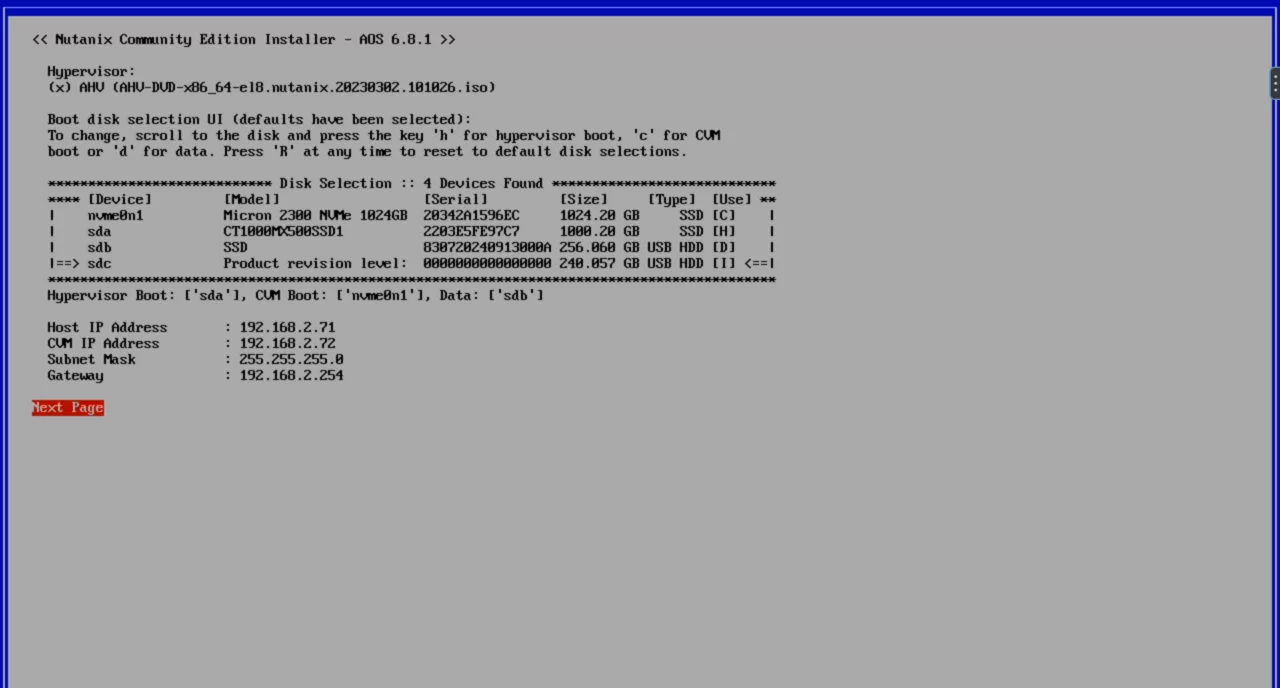
In the wizard select the correct disk layout. In my case the two internal drives are the CVM (nvme) and the AHV (ssd) and the DATA drive is the temporary USB. Give the correct IP’s and start installing. (I’ve got two USB drives, one is the installer the other is the temporary data drive)
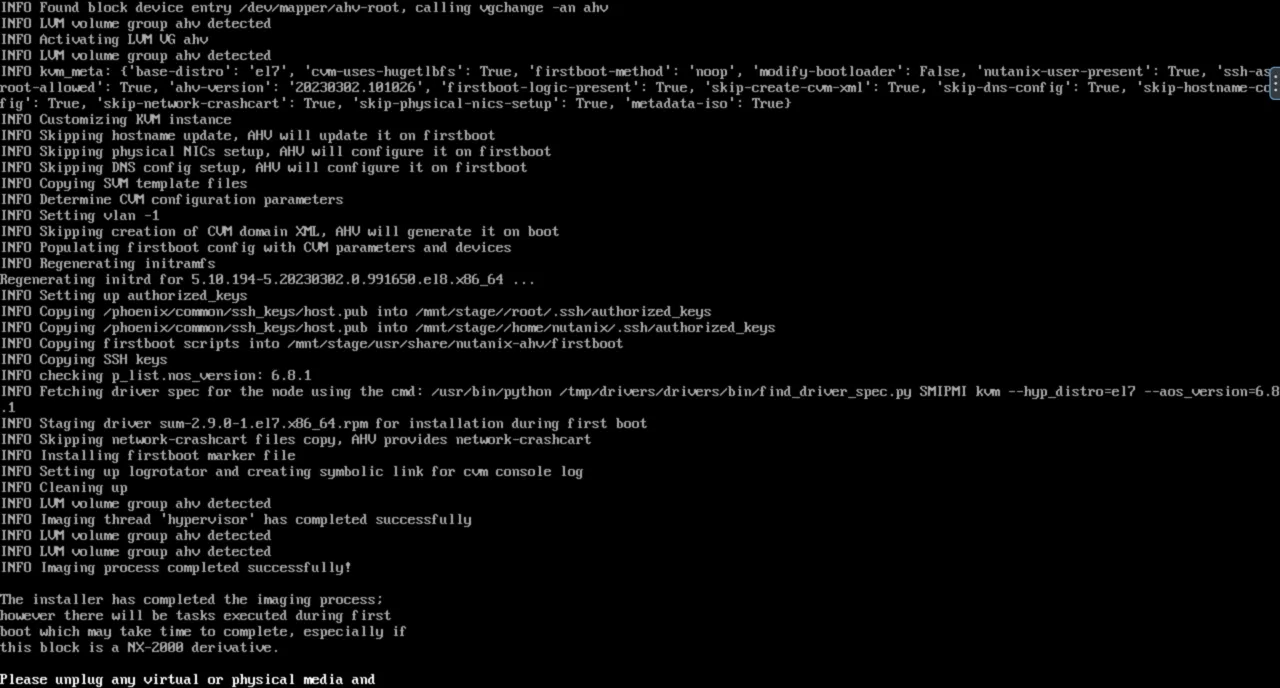
When installation completes remove the installer drive and the temporary USB Data drive (So, only the AHV and CVM will be present in the system). Press “Y” and let the system reboot into AHV.
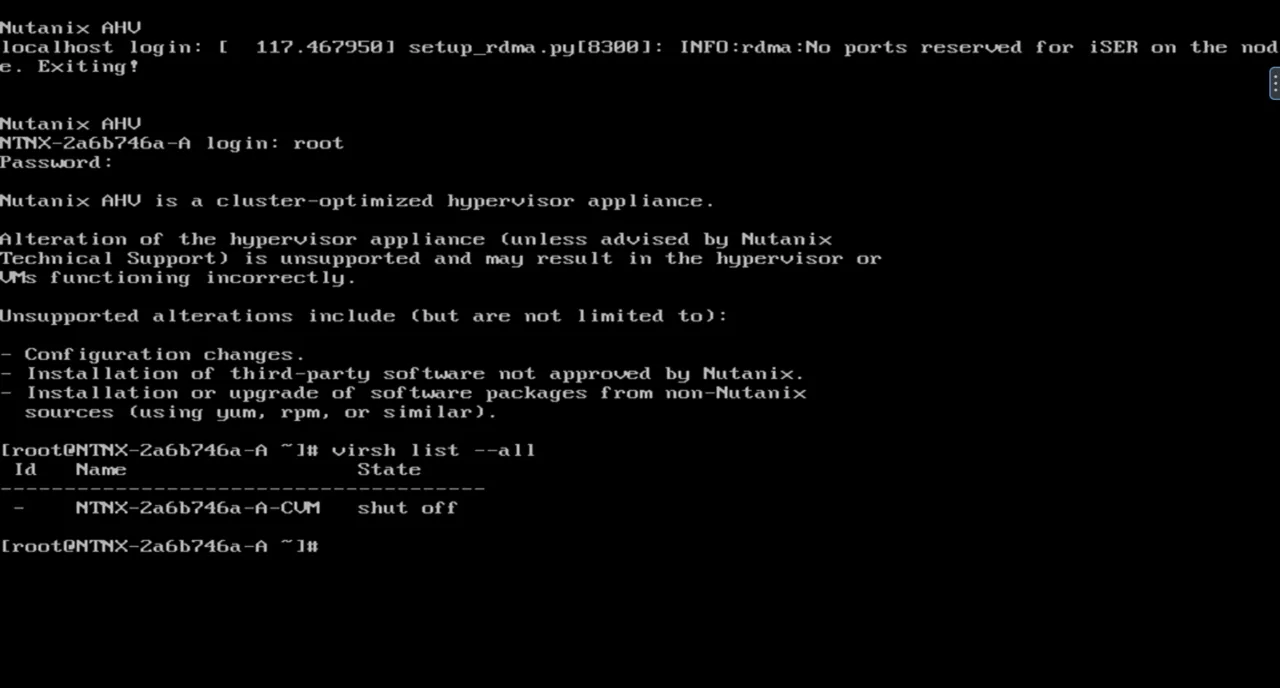
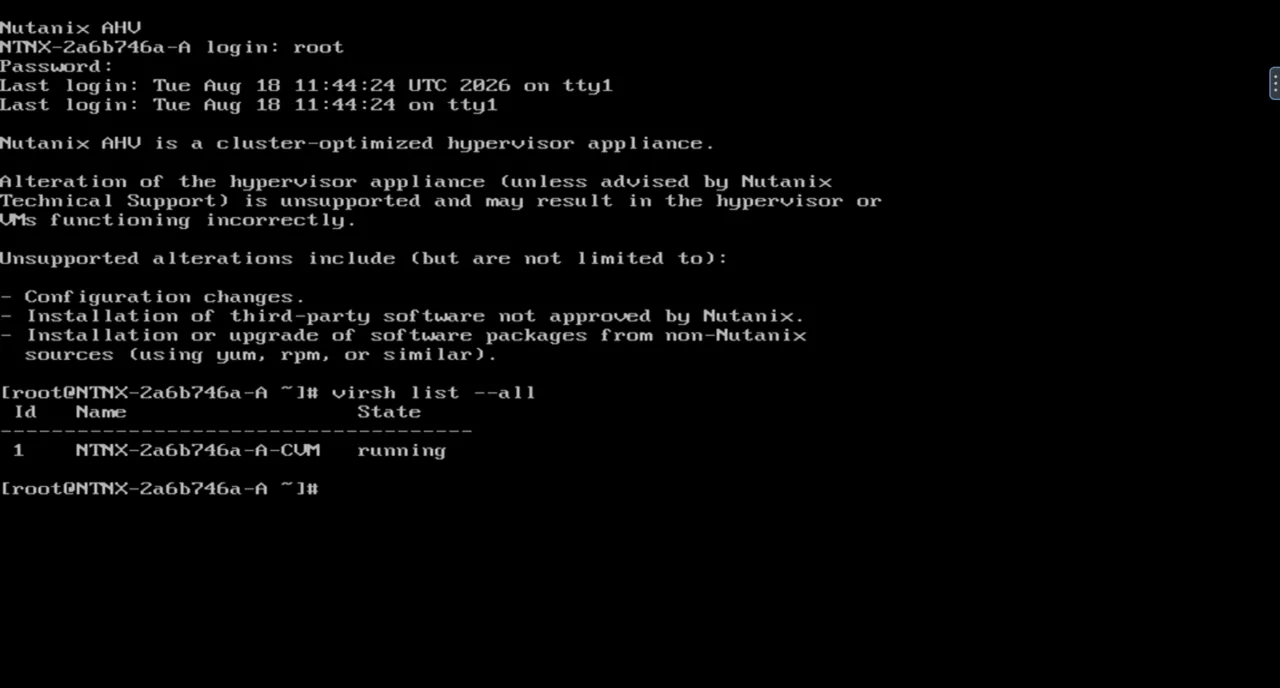
When the system is in AHV it will not automatically start the CVM as it cant find the USB drive anymore. See: virsh list –all
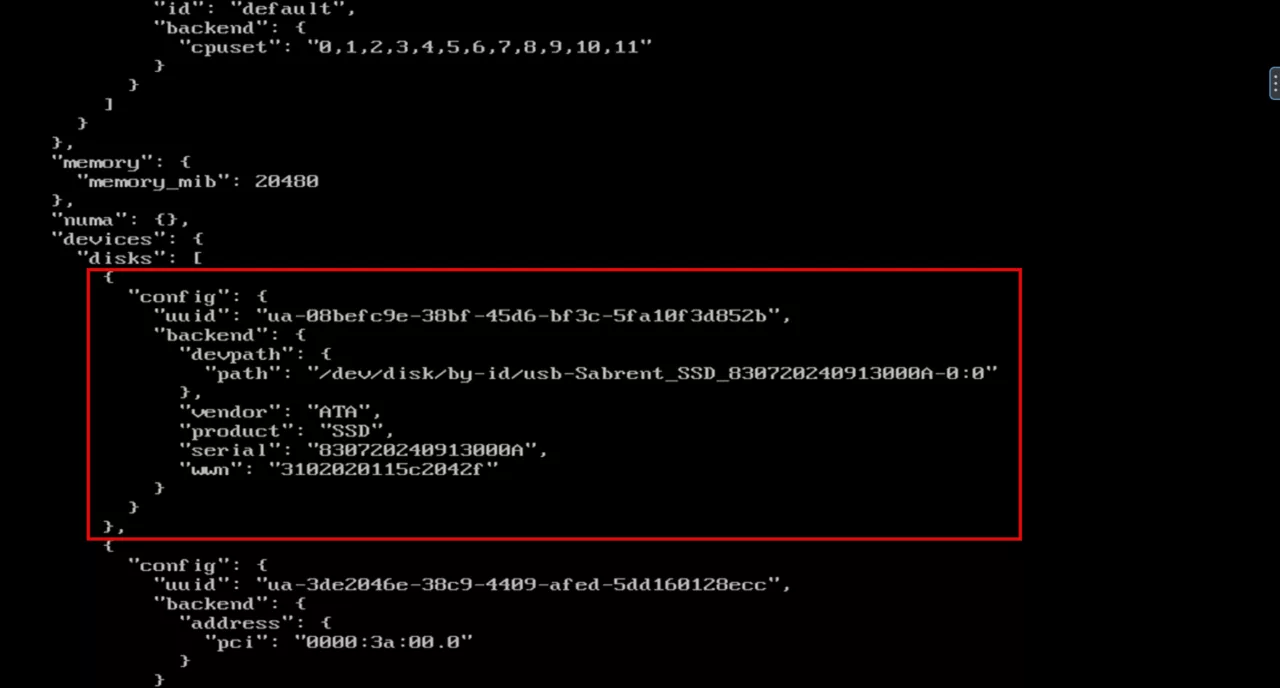
Edit the /etc/nutanix/config/cvm_config.json file with:
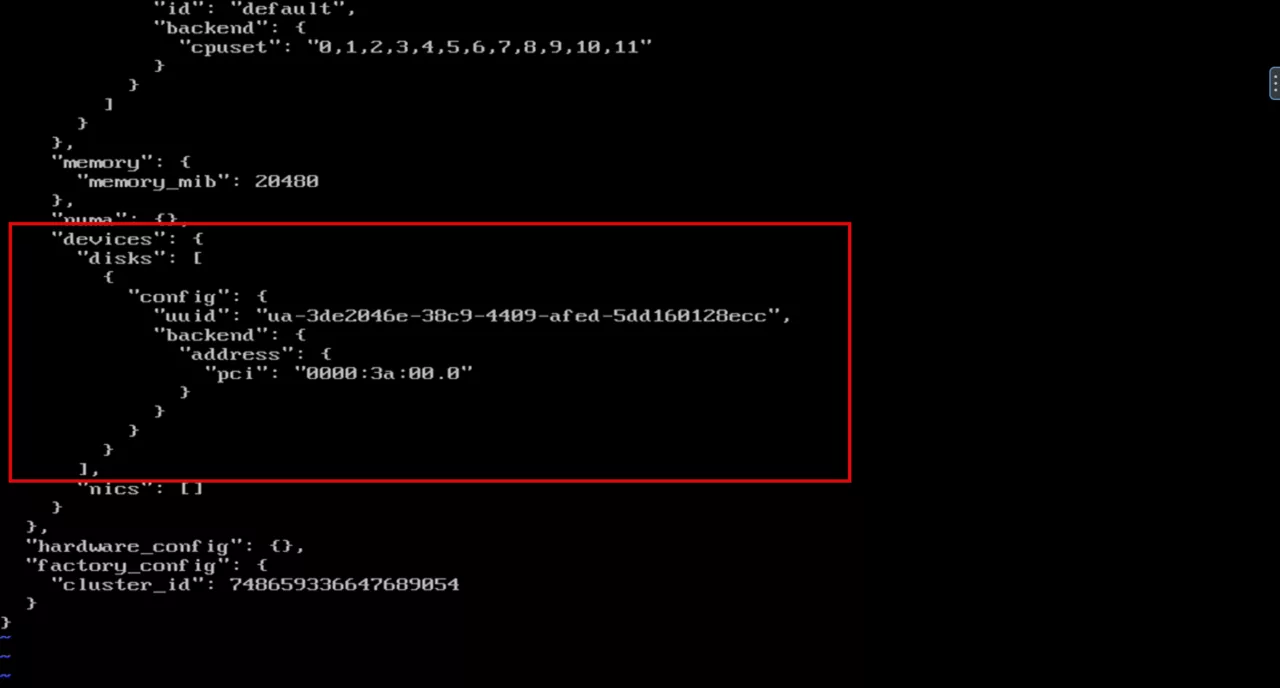
sudo vi /etc/nutanix/config/cvm_config.jsonRemove the USB drive from the config file, it is located in section vm_config –> devices –> disks (in vi with “dd” it will remove the line where the cursor is)
Before:
After:
Save the file (in vi it is the following key command ESCAPE -> :wq –> enter
Now reboot AHV again: reboot
When AHV is rebooted it will automatically recreate the CVM and start it up.
Wait for approx 20 minutes to let the firstboot scripts do their magics. When the scripts are done you can ssh into the CVM and create the cluster (Replace the names and IP’s to yours):
cluster -s 192.168.2.72 --cluster_name=HOMELAB --cluster_external_ip=192.168.2.73 --ntp_servers=0.nl.pool.ntp.org,1.nl.pool.ntp.org,2.nl.pool.ntp.org,3.nl.pool.ntp.org --dns_servers=192.168.2.254 --redundancy_factor=1 --skip_discovery=true create
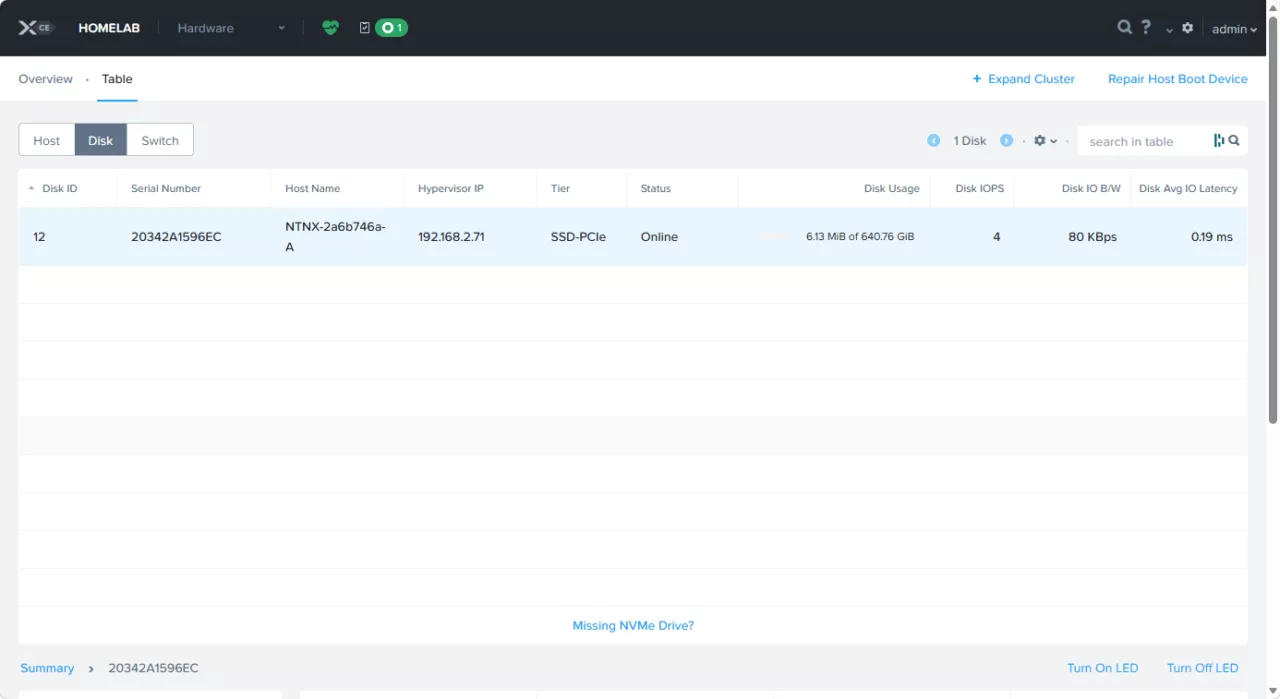
When the cluster is created login to Prism Element and have a look at the disks: Only one disk is showed (the AHV boot disk is not being presented in Prism Element)
Discover more from Jeroen Tielen
Subscribe to get the latest posts sent to your email.