When there is a one OSD for all type’s of computers in the network and you want specific software deployed only on laptops, here is the howto 
What’s the differences between a laptop and a desktop? Correct, the battery. So the simplest way to achieve our goal is to check if there is a battery present in the system.
Open the OSD Task Sequence and add the required step.
Then open the options tab in that step, and add the following condition:
WMI NameSpace: root\cimv2
WQL Query: Select * from Win32_Battery where Batterystatus > 0
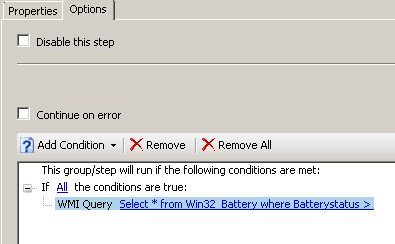
Here is the complete list: http://msdn.microsoft.com/en-us/library/aa394074(v=vs.85).aspx
Q: Howto run a specific OSD job only on laptop?
A: Add the following condition: Select * from Win32_Battery where Batterystatus > 0

In our organisation people dock their laptops without the battery to save the life of the battery. Also some of the Desktops are connected to UPS devices. So unfortunately that filter doesn’t always work.
However you can filter Laptops by checking the Memory FormFactor, laptops will have a FormFactor of 12 (SODIMM) which desktops will never have 🙂
WMI NameSpace: rootCIMv2
WQL Query: Select * from Win32_PhysicalMemory where FormFactor = 12
True. BUT 😉 iMac’s and Mac Mini’s (for instance) have also that type of RAM. And with Bootcamp it’s possible to install Windows on a Mac. I think there are (windows) desktops arround somewhere with that type of memory. But you are right. Choose your own working solution. I will keep this in mind though 😉
Try this only for windows 7
for mobile
SELECT * FROM Win32_ComputerSystem WHERE PCSystemType = “2”
for desktop
SELECT * FROM Win32_ComputerSystem WHERE PCSystemType = “1”
Cool, thanks Alessandro 🙂
Your welcome! 😀
Thanks Alessandro, that’s what I was looking for.. and thanks Jeroen for the tip..
Cheers 🙂
Your Welcome 😉
Your welcome!!!
I guess I spoke too soon :'(
Alessandro’s tip didnt work with a Dell laptop and the reason relies on the info the manufacturer provides for the devices.. there’s a comment about it right here:
http://social.technet.microsoft.com/Forums/en-US/configmgrosd/thread/bd98dfe6-f6a2-4fbb-8627-2a9f52067884/
The memory thing seems to be the way since there are some laptops that can be used without the battery when deploying..
thanks again 🙂
Ok. I’m testing another solution with MDT Integration.
If it works, I’ll share it!!!
Thanks!!!
Angel, with MDT integration the problem is solved!!!
Install the MDT and enable mdt integration. Now you need to create a “Microsoft Deployment Toolkit files package”. To do this create a new microsoft deployment task sequence, and on MDT Package step, select “Create a new Microsoft Deployment Toolkit Files package” and complete the ts.
After you can delete the task sequence and you can see a new package in software distribution.
Now modify the existing task sequence and add these two steps before “Apply windows settings”:
– Use Toolkit Package
– Gather
Then open the options tab in the required step and add this condition:
– TaskSequence variable IsLaptop equals “TRUE” for mobile
– TaskSequence variable IsDesktop equals “TRUE” for desktop.
This procedure works for me 😀