
In this blog post I will demonstrate how-to setup HYCU to use categories configured in Prism Central. VM’s attached to the category will automatically being back upped according to the HYCU policy.
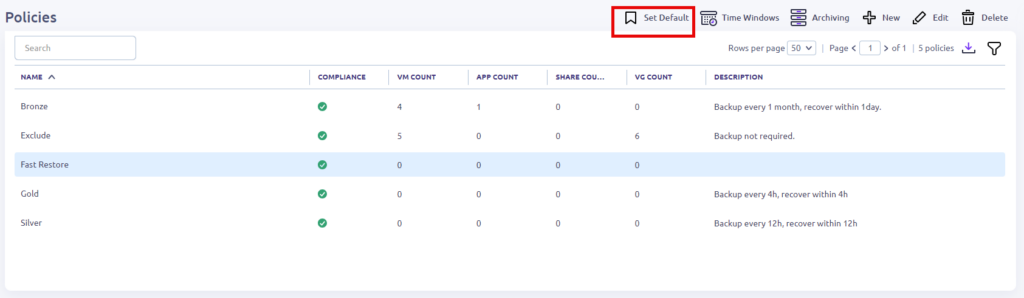
Please make sure a default HYCU policy is not configured as this will already attach a HYCU policy to the VM before the category based policy is attached.
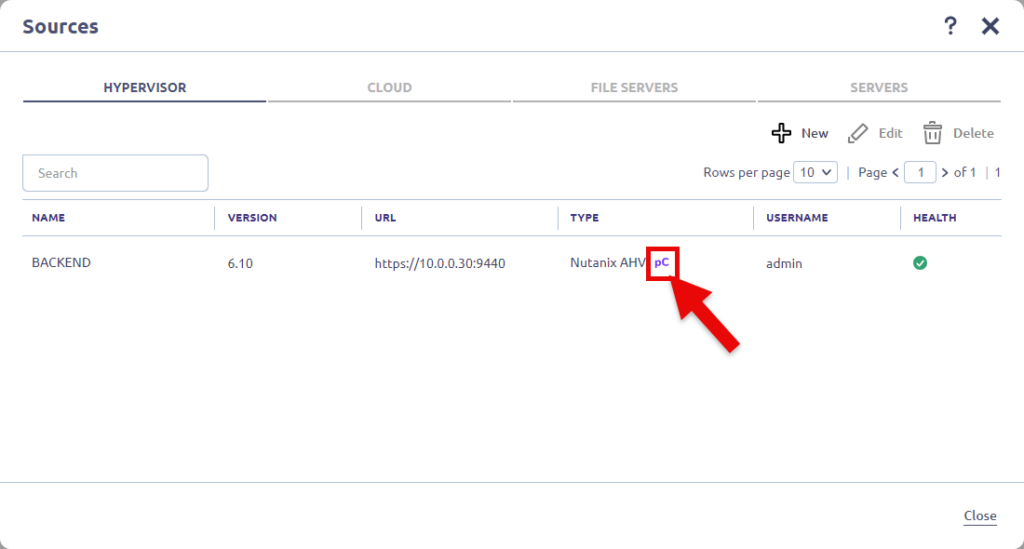
Next step is to check if you have configured Prism Central as well at the sources in HYCU:
Now create a new policy and configure it like this:
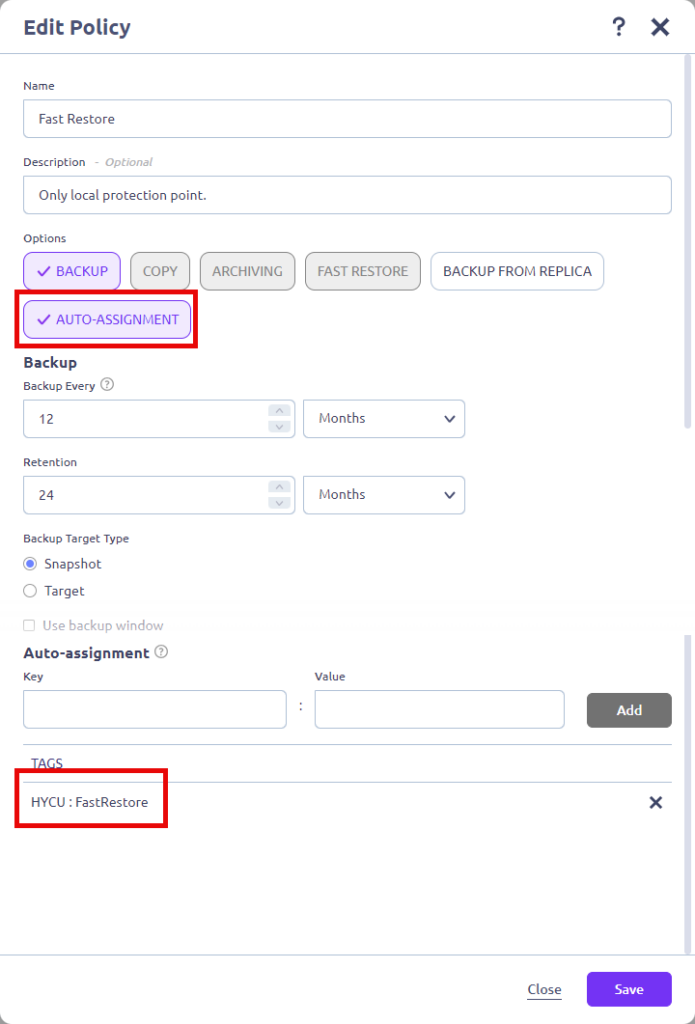
In my case it will only create local Recovery Points on the cluster if the VM has the category HYCU : FastRestore.
Make sure you select the AUTO-ASSIGNMENT as this will give you the option to add the category.
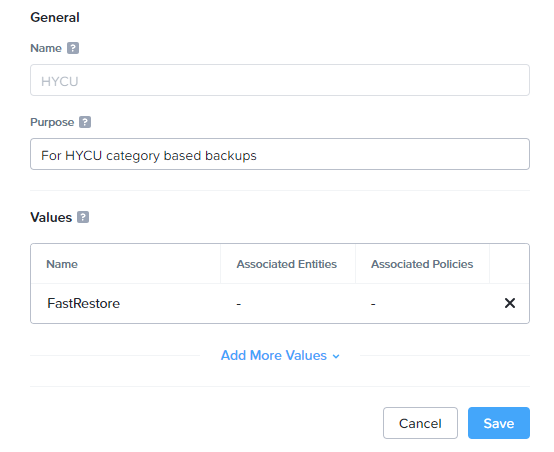
No go into Prism Central and make the following category/value: HYCU : FastRestore
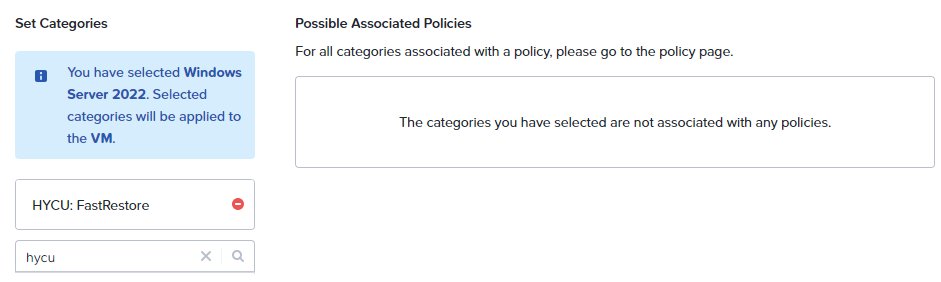
Assign this category to a VM:
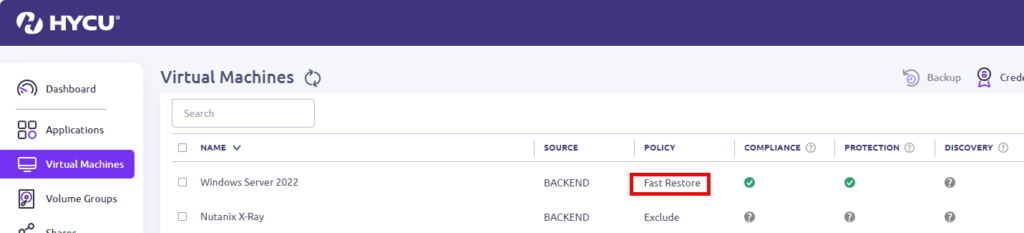
And if you look back into HYCU you will see that the VM has the HYCU policy attached:
We can automate this by assigning categories to VM’s during creation via a Playbook.
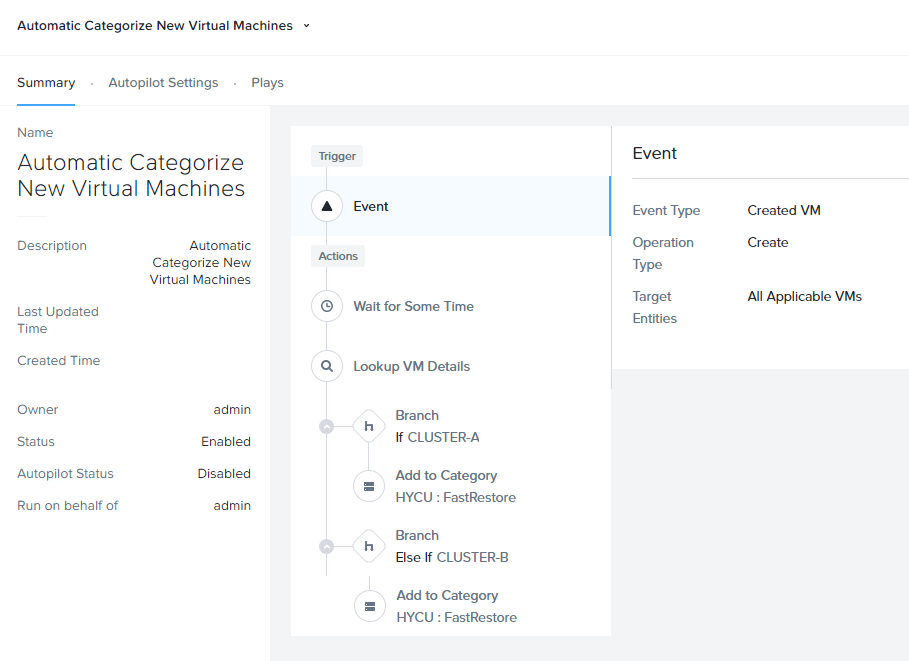
Copy and paste this line of text into a file with extension .pbk and you can import the Playbook into Prism Central 😉
{"pcVersion":"2024.2","pcUuid":"23268767-8a20-4b38-b3ac-d5c560f978c9","hashValue":"sQJLmtjRfc6FjpWgXLSU5g6YVmFnoaFAkAh1Xgu/7Hw=","actionRuleList":[{"uuid":"73961586-ec43-44b4-513b-f21510c1e75a","name":"Automatic Categorize New Virtual Machines","isEnabled":true,"validated":true,"triggerList":[{"uuid":"3b11cd98-8392-4817-8740-db19561571a7","triggerType":{"type":"trigger_type","uuid":"","name":"event_trigger"},"displayName":"Event","inputParameterList":[{"name":"operation_type","value":"1"},{"name":"type","value":"VmCreateAudit"},{"name":"category_filter_list","value":"[]"},{"name":"source_entity_info_list","value":"[]"}]}],"actionList":[{"uuid":"456a8ff1-485c-4d21-b61b-488f6367787c","actionType":{"type":"action_type","uuid":"","name":"wait_for_duration"},"displayName":"Wait for Some Time","inputParameterList":[{"name":"wait_duration","value":"1"},{"name":"post_check_trigger_validity","value":"false"},{"name":"block_resume","value":"false"},{"name":"stop_after_time","value":"false"}],"maxRetries":2,"postCheckTriggerValidity":false,"childActionUuids":["69f1830b-a598-42d5-aafb-b28402652cf2"]},{"uuid":"69f1830b-a598-42d5-aafb-b28402652cf2","actionType":{"type":"action_type","uuid":"","name":"vm_lookup_action"},"displayName":"Lookup VM Details","inputParameterList":[{"name":"target_vm","value":"{{trigger[0].source_entity_info}}"}],"maxRetries":2,"childActionUuids":["174190ab-89e9-4031-bd90-a13365b0f7b5"]},{"uuid":"174190ab-89e9-4031-bd90-a13365b0f7b5","actionType":{"type":"action_type","uuid":"","name":"branch_action"},"displayName":"Branch","inputParameterList":[{"name":"conditional_expression","value":"[\"{0}=={1}\",\"{2}=={3}\"]"},{"name":"condition","value":"[\"if\",\"if\"]"},{"name":"values","value":"[\"{{action[1].hosting_cluster_vip}}\",\"10.0.0.30\",\"{{action[1].hosting_cluster_vip}}\",\"10.0.2.30\"]"},{"name":"branch","value":"[\"03a987c6-b063-4a9c-86e8-6368fc3a4832\",\"f76b2053-ccb4-4267-a2b6-471422451a45\"]"}],"maxRetries":2,"description":"CLUSTER-A@|CLUSTER-B","childActionUuids":["03a987c6-b063-4a9c-86e8-6368fc3a4832","f76b2053-ccb4-4267-a2b6-471422451a45"]},{"uuid":"03a987c6-b063-4a9c-86e8-6368fc3a4832","actionType":{"type":"action_type","uuid":"","name":"add_category_action"},"displayName":"Add to Category","inputParameterList":[{"name":"target_vm","value":"{{trigger[0].source_entity_info}}"},{"name":"entity_type","value":"vm"},{"name":"category_entity_info","value":"[]"}],"maxRetries":2,"description":"HYCU : FastRestore"},{"uuid":"f76b2053-ccb4-4267-a2b6-471422451a45","actionType":{"type":"action_type","uuid":"","name":"add_category_action"},"displayName":"Add to Category","inputParameterList":[{"name":"target_vm","value":"{{trigger[0].source_entity_info}}"},{"name":"entity_type","value":"vm"},{"name":"category_entity_info","value":"[]"}],"maxRetries":2,"description":"HYCU : FastRestore"}],"isPrepackaged":false,"checkTriggerValidity":true,"description":"Automatic Categorize New Virtual Machines","triggerFilterableInputParamName":"type","triggerFilterableInputParamValue":"VmCreateAudit","ruleType":"kXPlay"}]}
When the playbook is imported you need to change it to match you cluster ip’s (Under: Branches) and categories (Under: add to Category). Enable the playbook and all newly created virtual machines will automatic be added to the correct category and so automatically added to a HYCU Policy.
Discover more from Jeroen Tielen
Subscribe to get the latest posts sent to your email.

Great post, I didn’t realize Category based back up came out that long ago.