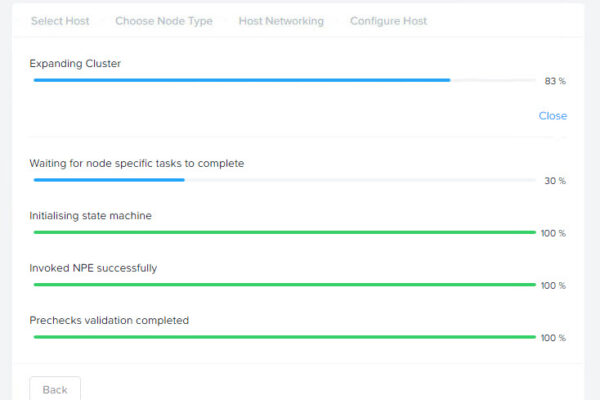
Citrix has added support for Nutanix Prism Central in version 2507 CU1. This means when setting up a host connection you can attach it to Prism Central instead of Prism Element. Meaning you don’t have to connect each cluster separate but only the Prism Central which manage all the clusters to deploy the workloads. Is this blogpost I will demonstrate how to do this. In the lab I got 2 clusters (CLUSTER2 and CLUSTER3) attached to 1 Prism Central and upgraded my Citrix lab to the supported version.
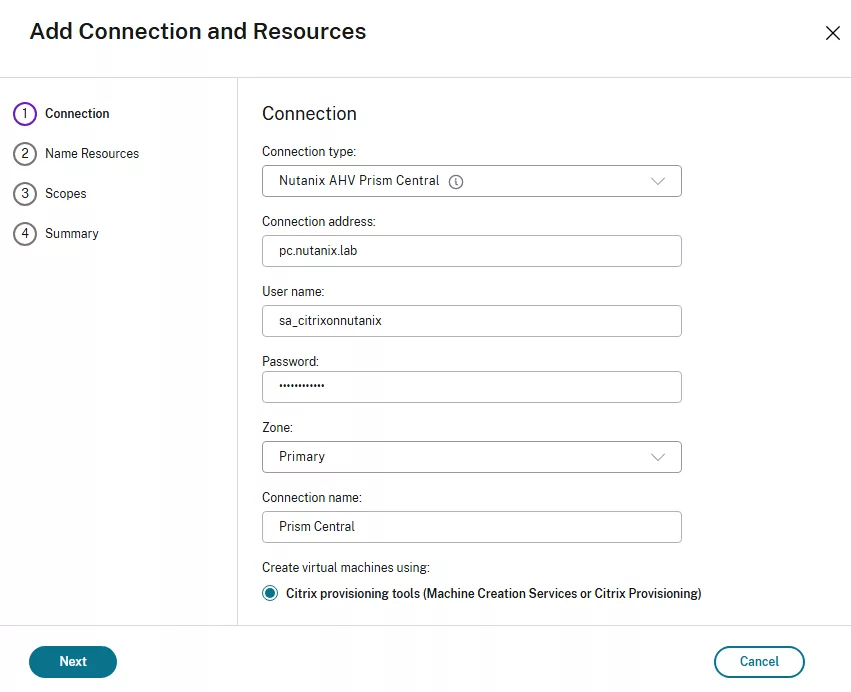
I will add the host connection and select “Nutanix AHC Prism Central” from the connection type drop down menu. Add all required information.
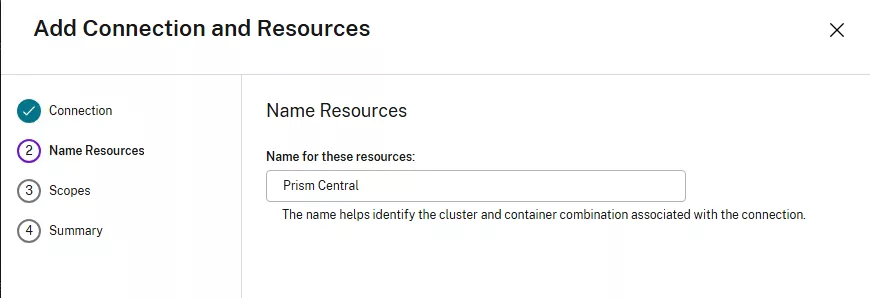
On the next page we need to name the resource. The information is somewhat misleading as this not a cluster and/or container info.
Now that the connection is created lets see how this works. I got a Windows 11 Golden Image on CLUSTER3. Before we can use the Golden Image we must make sure it is available as a template in Prism Central. (More information about how to create a template here: https://www.jeroentielen.nl/creating-and-maintaining-a-template-virtual-machine-in-nutanix/). So no “snapshot” or “recovery point” 😉
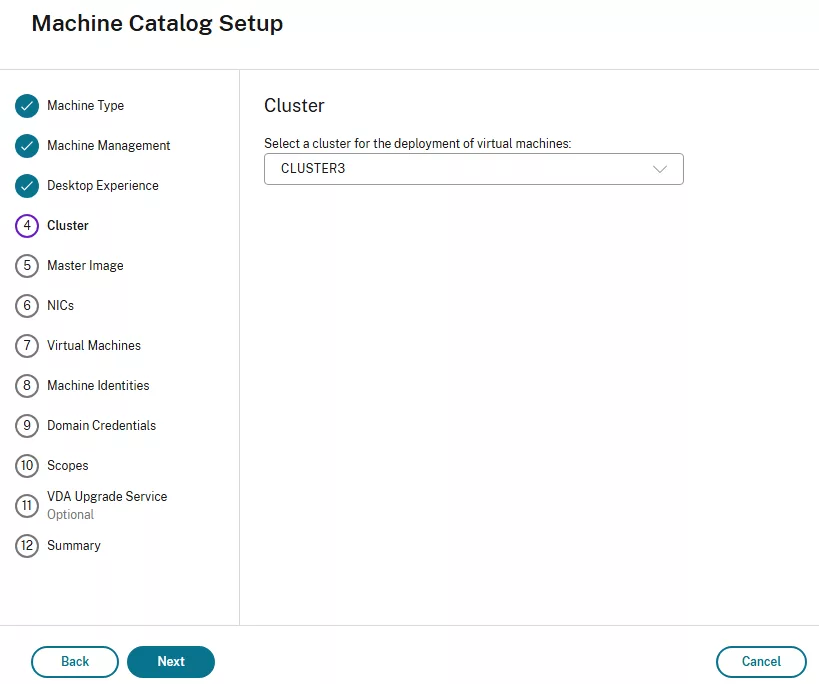
We start the “create machine catalog wizard” in Citrix Studio. One of the first questions will be on which cluster you want the deployment of the virtual machines. You can only select 1 cluster here, in my case I will select CLUSTER3.
On the next screen we can select the image/template which we want to use.
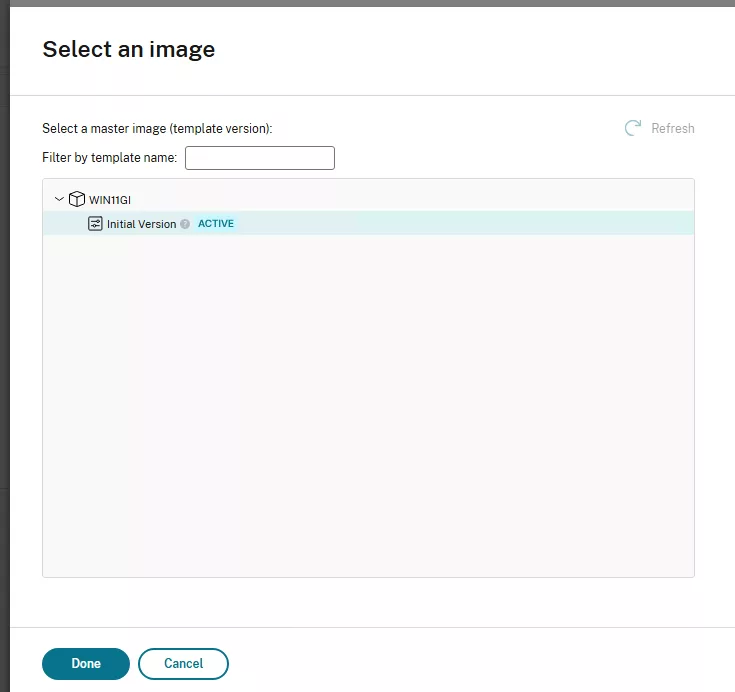
When the correct image/template is selected we will continue the wizard to create the machine catalog. I will add the cluster name into the machine catalog name so I can easily identify it. Next step (for me) is to create another machine catalog for the other cluster. It will replicate the template to the other cluster in the background. In the end I have these two (2) machine catalogs:

Updating:
To update the machine catalogs to a newer version you need to create a new version in the template. This is all being described here: https://www.jeroentielen.nl/creating-and-maintaining-a-template-virtual-machine-in-nutanix/
When the newer version is created, update the machine catalogs with it:
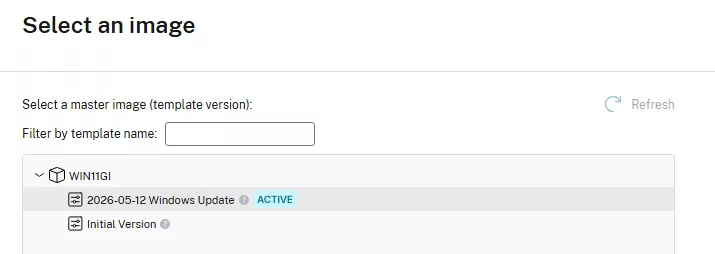
Dont foget to do this on all the machine catalogs.
Points to remember:
- Only one (1) cluster can be selected per machine catalog;
- Create a machine catalog per cluster and create 1 delivery group with all virtual machines from all the machine catalogs;
- The preperation vm (per cluster) will get a recovery point which is being used to clone the virtual machines from;
- Dont delete this recovery point . Citrix will manage this;
- No snapshots or recovery points are needed to be created manually;
- This method is using templates in Prism Central.
Discover more from Jeroen Tielen
Subscribe to get the latest posts sent to your email.